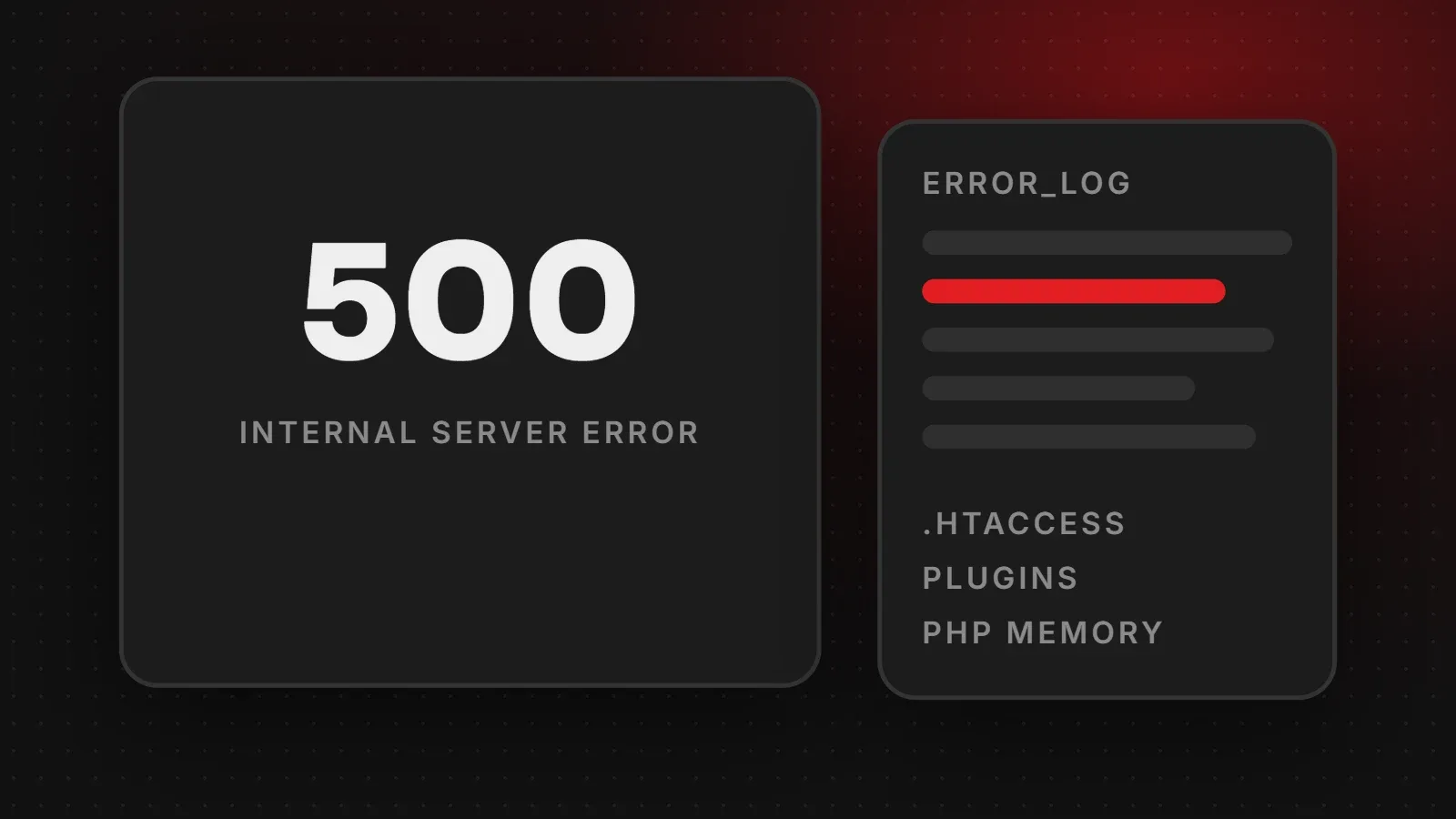
A 500 internal server error means something went wrong on the website's server, but the server could not say exactly what. On WordPress and other PHP sites, the most common causes are a broken .htaccess file, a faulty plugin or theme, too little PHP memory, an incompatible PHP version or wrong file permissions. The fastest way to the real cause is the server error log. This guide gives a safe order of checks to find and fix the problem.
- A 500 error is a server-side problem; visitors cannot fix it themselves.
- Check the error log first, because it usually names the file and line causing the error.
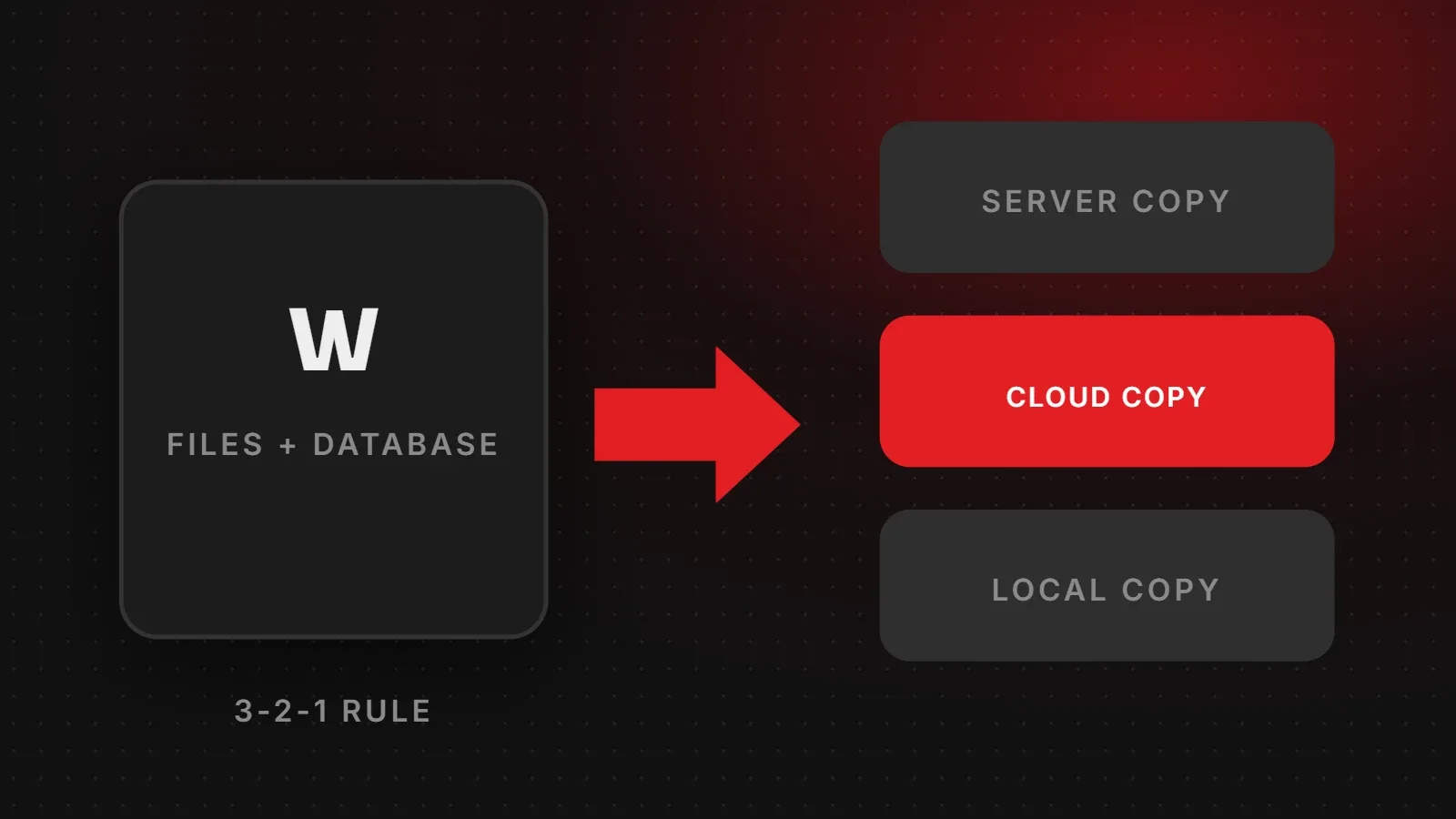
- Take a backup before changing files, and undo the last change if the error started after an update.
If you are a visitor
Reload the page after a minute, clear your cache, or come back later. If it continues, contact the website owner. The fix has to happen on their server.
If you own the site: start here
- Think about what changed. A plugin update, new code or a PHP upgrade just before the error is the most likely cause.
- Take a backup of files and database if you can. See how to back up WordPress.
- Open the error log in your hosting panel (often called "Errors" or
error_login the site folder).
How to fix a 500 internal server error, step by step
1. Read the error log
Look for lines such as "PHP Fatal error" with a file path. If the path contains /wp-content/plugins/plugin-name/, that plugin is the cause.
2. Turn on WordPress debugging
If there is no clear log, add these lines to wp-config.php to write errors to wp-content/debug.log without showing them to visitors:
define( 'WP_DEBUG', true );
define( 'WP_DEBUG_LOG', true );
define( 'WP_DEBUG_DISPLAY', false );
Turn debugging off again after fixing the problem.
3. Reset the .htaccess file
Rename .htaccess to .htaccess-old using your file manager. If the site loads, go to Settings > Permalinks in WordPress and click Save to create a fresh file.
4. Disable plugins
If you cannot reach the dashboard, rename the wp-content/plugins folder to plugins-off. If the site works, rename it back and re-enable plugins one by one to find the faulty one.
5. Switch to a default theme
Rename your active theme's folder so WordPress falls back to a default theme. If that fixes it, the theme code is the problem.
6. Increase PHP memory
Errors mentioning "Allowed memory size exhausted" need more memory. Raise the PHP memory limit in your hosting panel, or add define( 'WP_MEMORY_LIMIT', '256M' ); to wp-config.php.
7. Check the PHP version
Old plugins can break on new PHP versions, and new plugins can require them. Switch the PHP version in your hosting panel to one that your theme and plugins support.
8. Check file permissions
Folders are usually 755 and files 644. Wrong permissions, often after a migration, can trigger 500 errors.
How to prevent 500 errors
- Update plugins one at a time, and test on a staging site for important stores.
- Remove plugins you no longer use.
- Keep automatic backups.
- Follow a regular website maintenance checklist.
Frequently asked questions
What does 500 internal server error mean?
The server hit an unexpected problem and could not complete the request.
Is a 500 error my fault as a visitor?
No. It is a problem on the website's server.
Can a plugin cause a 500 error?
Yes. Faulty or incompatible plugins are one of the most common causes on WordPress.
Does a 500 error affect SEO?
Short errors have little effect, but if Google sees 500 errors for a long time, it may crawl less and drop pages. Fix it quickly. See Google's notes on HTTP errors.
Site down with a 500 error?
Our maintenance and support team diagnoses and fixes server errors fast, and our WordPress team can clean up faulty plugins and themes. Contact us now.
Written by the ItsWebExpert team, a web design and development company in Karachi building websites, online stores and apps for businesses across Pakistan.
Ask a Question on WhatsApp