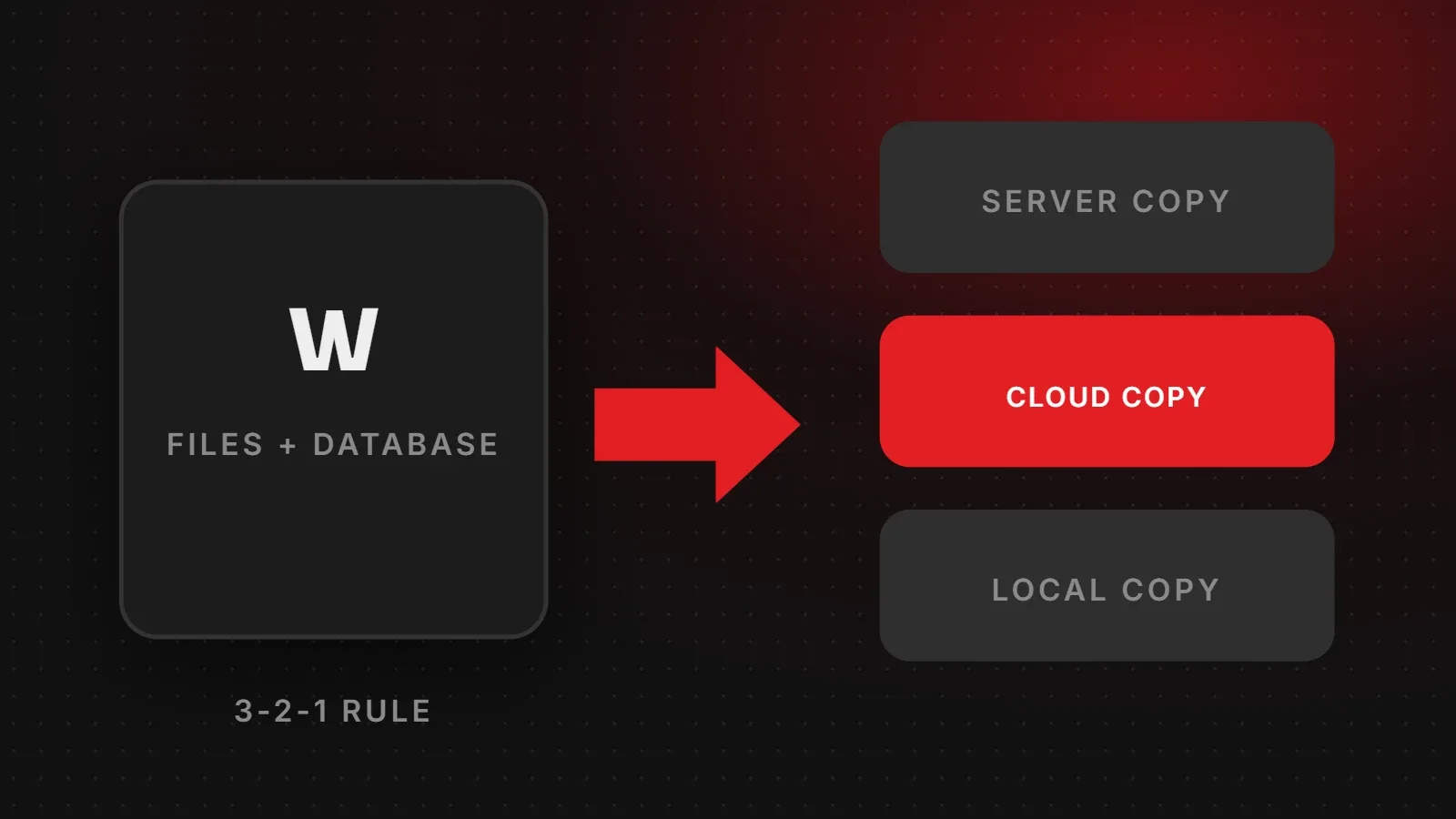
To back up WordPress, you need two things: your files (themes, plugins and uploads in wp-content) and your database (posts, pages, orders and settings). The easiest method is a backup plugin such as UpdraftPlus that saves both to cloud storage on a schedule. You can also use your hosting's backup tool or download everything manually. This guide covers all three methods, how often to back up, and how to restore safely.
- A full backup includes both files and the database.
- Store at least one copy away from your hosting server, for example in Google Drive or Dropbox.
- Test restoring a backup before you need it in an emergency.
What a WordPress backup must include
| Part | Contains |
|---|---|
| Database | Posts, pages, products, orders, users, settings |
| wp-content/uploads | Images, PDFs and other media |
| wp-content/themes and plugins | Your design and functionality |
| wp-config.php and .htaccess | Site configuration and redirects |
Method 1: Back up WordPress with a plugin
- Install a backup plugin such as UpdraftPlus from Plugins > Add New.
- Choose a remote storage location, such as Google Drive, Dropbox or Amazon S3, and connect it.
- Set a schedule: for example, files weekly and database daily.
- Choose how many backups to keep.
- Run the first backup manually and check the files appear in your cloud storage.
Method 2: Use your hosting's backups
Many hosts make automatic daily or weekly backups and let you restore with one click from the control panel. Check how long they keep backups and whether they cost extra. Hosting backups are convenient, but they often sit on the same company's servers, so keep an extra copy elsewhere.
Method 3: Manual backup
- Files: use your hosting File Manager or FTP to download the whole site folder, or at least
wp-contentandwp-config.php. - Database: open phpMyAdmin from your hosting panel, select the WordPress database and click Export to download a .sql file.
- Store both together with the date in the file name.
How often should you back up WordPress?
| Site type | Database | Files |
|---|---|---|
| Brochure site, rarely updated | Weekly | Monthly and before updates |
| Blog with regular posts | Daily | Weekly |
| Online store | Daily or more often | Daily or weekly |
Always take a backup right before updating WordPress, plugins or themes.
How to restore a WordPress backup
- Plugin: in UpdraftPlus, open the backup list and click Restore, choosing files, database or both.
- Hosting: use the restore button in your control panel.
- Manual: upload the files, import the .sql file in phpMyAdmin, and check database details in wp-config.php.
Test a restore on a staging site every few months. A backup you cannot restore is not a real backup. WordPress also has an official guide to WordPress backups.
Frequently asked questions
How do I back up my WordPress site for free?
Use the free version of UpdraftPlus with Google Drive or Dropbox, or download files and the database manually.
Are hosting backups enough?
They help, but keep at least one copy off your hosting account in case of account problems.
Does a backup slow down my site?
Backups use server resources while running. Schedule them at quiet times, such as late at night.
What should I do before updating plugins?
Take a full backup, then update one plugin at a time and check the site.
Want backups handled for you?
Our maintenance and support plans include automatic off-site backups, monthly restore tests and safe updates. If your site is already broken, see our 500 error guide or contact us.
Written by the ItsWebExpert team, a web design and development company in Karachi building websites, online stores and apps for businesses across Pakistan.
Ask a Question on WhatsApp