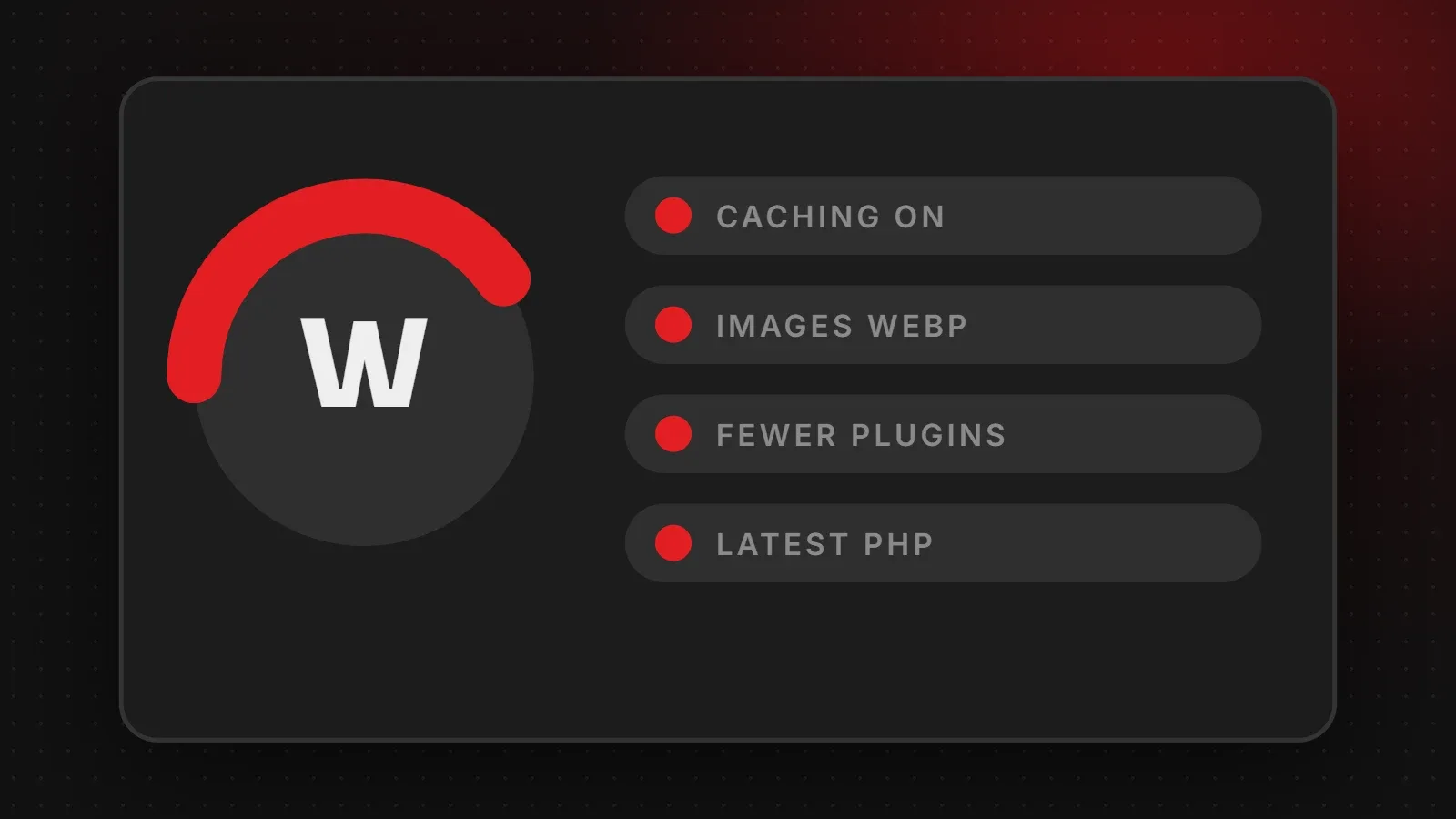
To speed up a WordPress website, start with the changes that make the biggest difference: good hosting, page caching, optimised images and fewer plugins. Then move on to a lighter theme, a newer PHP version and a clean database. This guide walks through 12 practical steps in order of impact, so you can speed up WordPress without breaking your site.
- Hosting and caching fix the slow server response that holds every page back.
- Images are usually the biggest files on a WordPress page; compress and convert them.
- Every plugin can add code to every page, so remove the ones you do not need.
Before you speed up WordPress: measure first
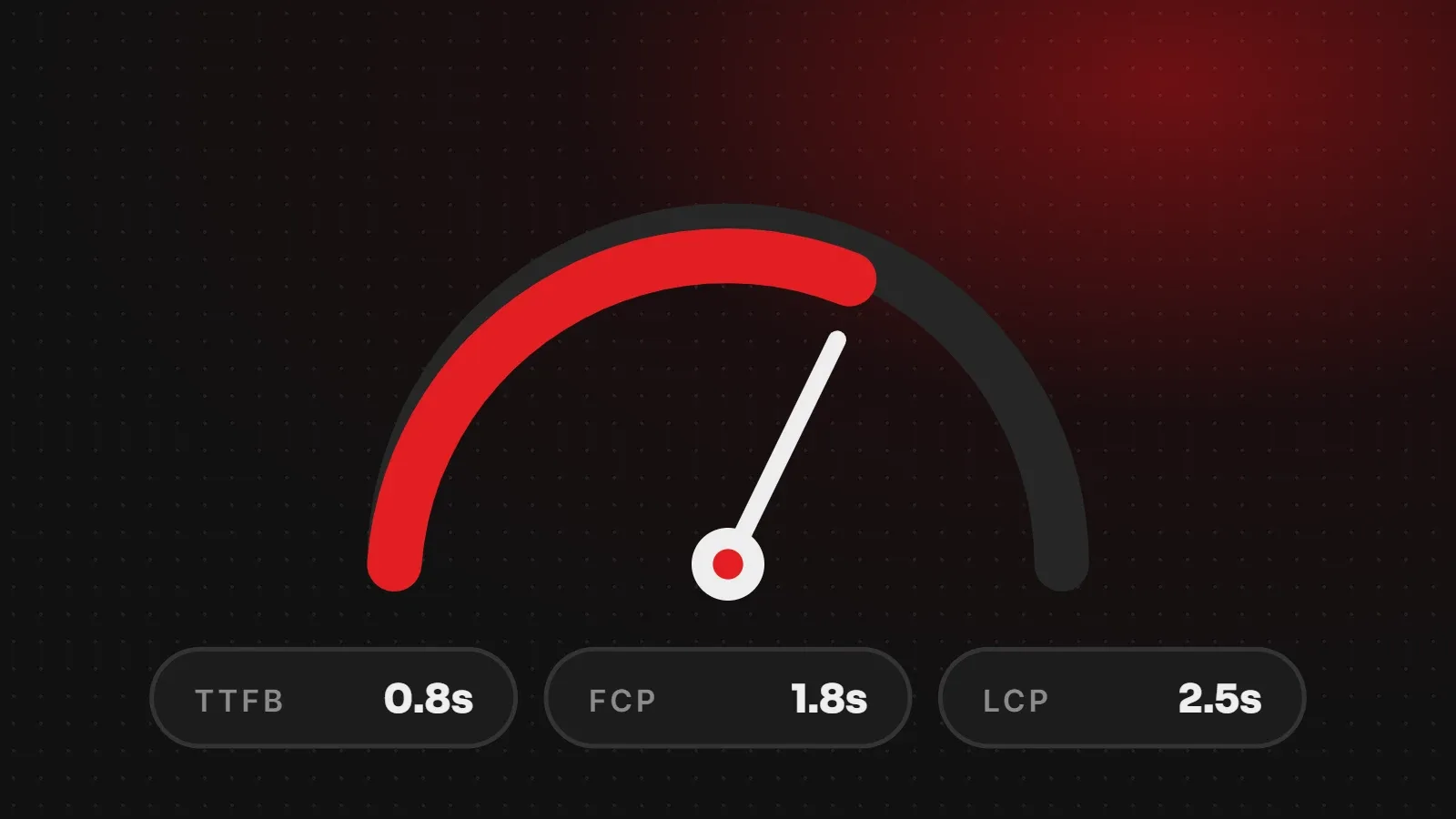
Test your homepage and a few key pages with PageSpeed Insights and write down the results. Then you can see which steps actually helped. Our guide on how to check website speed explains the numbers.
12 steps to speed up a WordPress website
1. Use good hosting
Cheap, overloaded shared hosting makes every page slow before WordPress even starts. Choose hosting with SSD or NVMe storage, enough memory and server-level caching. If your visitors are mostly in one country, a server or CDN near them helps.
2. Turn on page caching
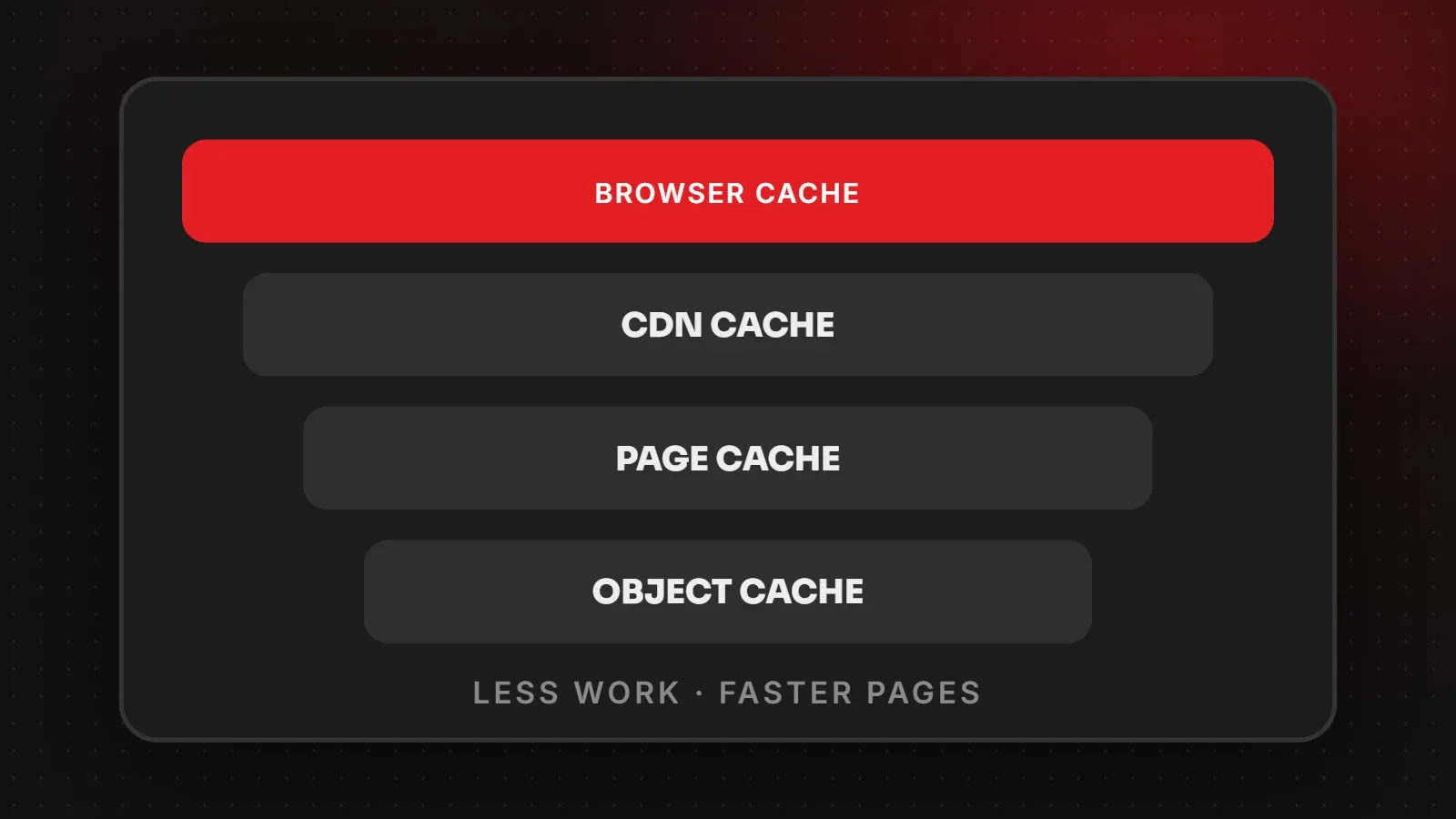
Caching saves a ready-made copy of each page so WordPress does not rebuild it for every visitor. Use your host's built-in cache (such as LiteSpeed Cache on LiteSpeed servers) or a plugin like WP Rocket or W3 Total Cache. Only use one caching plugin at a time.
3. Optimise images
Resize images before uploading, convert them to WebP, and compress them. An image plugin can do this automatically. See how to compress images without losing quality.
4. Remove unused plugins
Deactivate and delete plugins you do not use. Then check the remaining ones: sliders, page builders, social feeds and chat widgets are often the heaviest. Replace several small plugins with one well-built one where possible.
5. Use a lightweight theme
Some multipurpose themes load large amounts of code on every page. Lightweight themes such as GeneratePress, Astra or Kadence, or a well-built custom theme, give a faster starting point.
6. Update PHP
Newer PHP versions run WordPress noticeably faster and more securely. Check your version in Tools > Site Health and update it from your hosting panel to a version your theme and plugins support.
7. Lazy-load images below the fold
WordPress lazy-loads images by default, but make sure your hero image is not lazy-loaded, because that slows the main content. See our guide to improving LCP.
8. Minify and defer CSS and JavaScript
Caching and optimisation plugins can minify files, remove unused CSS and delay non-essential scripts until after the page appears. Test carefully, because aggressive settings can break menus or forms.
9. Limit web fonts
Use one or two font families and only the weights you need. Host fonts locally where possible.
10. Clean the database
Old post revisions, spam comments, expired transients and leftover plugin tables slow database queries. Clean them with a plugin like WP-Optimize, and limit how many revisions WordPress keeps.
11. Use a CDN
A content delivery network such as Cloudflare serves static files from servers close to your visitors and can also add caching and security.
12. Reduce external scripts
Tracking codes, chat widgets, embedded social feeds and video embeds all load from other servers. Keep only the ones you need, and load embeds such as YouTube only when a visitor clicks play.
Extra tips for WooCommerce stores
- Exclude cart, checkout and account pages from page caching (most cache plugins do this automatically).
- Limit the number of products per category page.
- Disable cart fragments on pages where the mini-cart is not needed.
- Use object caching (Redis or Memcached) if your host supports it.
Frequently asked questions
Why is my WordPress site so slow?
The most common causes are slow hosting, no caching, large images, too many plugins and a heavy theme or page builder.
What is the best caching plugin for WordPress?
It depends on your server. Use LiteSpeed Cache on LiteSpeed hosting, or WP Rocket or W3 Total Cache elsewhere. Only run one.
Do too many plugins slow down WordPress?
The quality of plugins matters more than the number, but every plugin can add code, so remove those you do not need.
Does Elementor slow down WordPress?
Page builders add extra code, but a well-configured Elementor site with good hosting and caching can still be fast.
Want a faster WordPress site without the risk?
Our WordPress team and speed specialists audit your site, fix hosting, caching, images and plugins, and test everything before going live. Official guidance is also in the WordPress optimisation docs. Ask for a free speed check.
Written by the ItsWebExpert team, a web design and development company in Karachi building websites, online stores and apps for businesses across Pakistan.
Ask a Question on WhatsApp